
Arabic Keyboard
Essential Keyboard Shortcuts: The Ultimate Guide to Boost Your Productivity
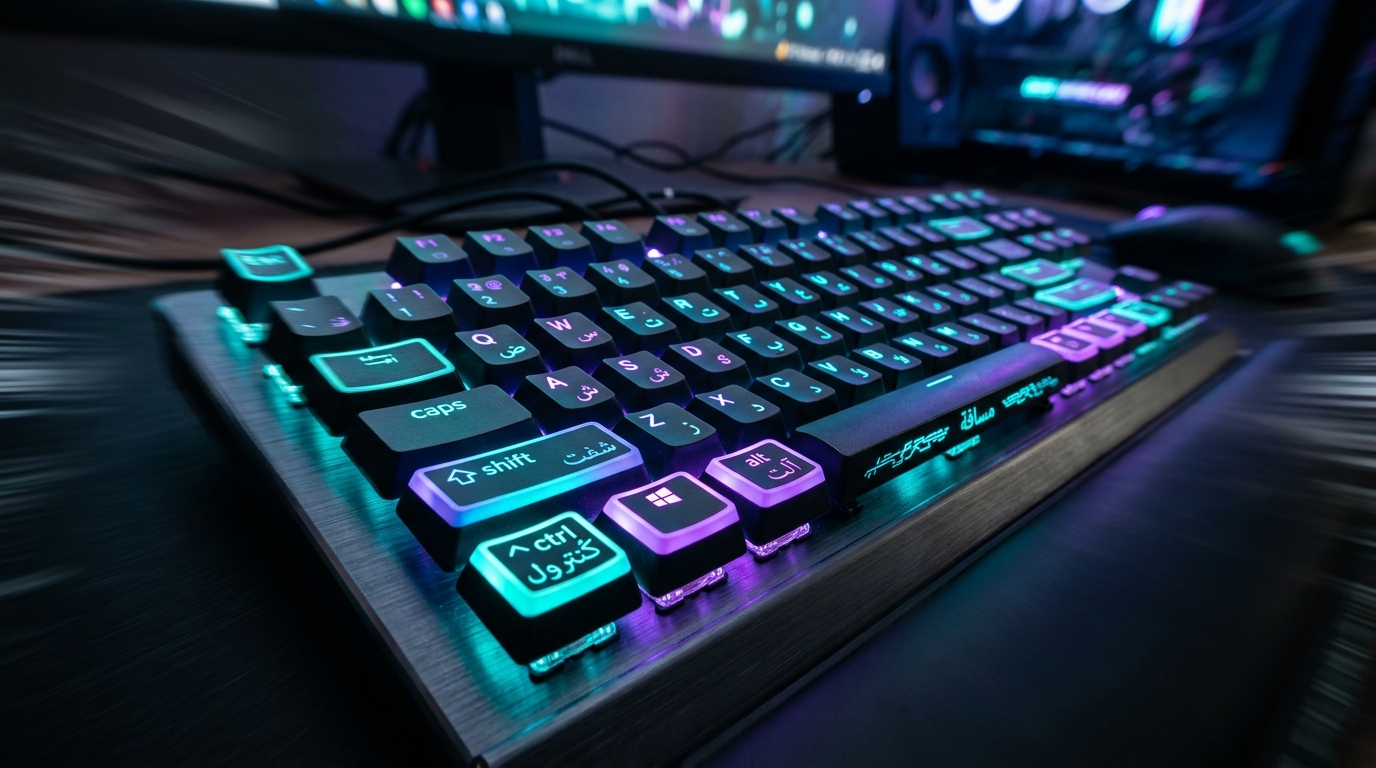
Every day, we spend hours in front of our computers. Yet, did you know that the average user loses several minutes daily by continuously moving their hand between the mouse and the keyboard? Using keyboard shortcuts is the simplest and most effective way to optimize your workflow, whether you are at the office, studying, or browsing the Internet.
Whether you use Microsoft's or Apple's operating system, this comprehensive guide lists the essential key combinations to know to work like a true computer expert.
1. Universal keyboard shortcuts (Office and Text)
Certain basic commands are identical (or nearly so) on almost all word processing software, internet browsers, and operating systems. They are the foundations of modern typing (which you can explore further through our typing tutorials).
| Action | On Windows | On Mac (macOS) |
|---|---|---|
| Copy selected text / item | Ctrl + C | Cmd ⌘ + C |
| Cut (move) item | Ctrl + X | Cmd ⌘ + X |
| Paste item stored in clipboard | Ctrl + V | Cmd ⌘ + V |
| Undo last action (essential!) | Ctrl + Z | Cmd ⌘ + Z |
| Select all on the page or document | Ctrl + A | Cmd ⌘ + A |
| Find a specific word or phrase | Ctrl + F | Cmd ⌘ + F |
2. Manage the system and windows without a mouse
Navigating between your open applications or organizing your digital workspace can be done in a fraction of a second if you know the right combinations.
On Windows
- Alt + Tab: Allows you to instantly switch from one open application to another.
- Win ⊞ + D: Minimizes all windows to display the Desktop directly.
- Win ⊞ + L: Instantly locks your user session (ideal at the office).
- Win ⊞ + Left / Right Arrow: Perfectly aligns the active window on one half of the screen (ideal for multitasking).
On Mac (macOS)
- Cmd ⌘ + Tab: Quickly alternates between your running applications.
- Cmd ⌘ + Space: Opens the Spotlight universal search bar to launch a file or application.
- Ctrl + Cmd ⌘ + Q: Locks your Mac's screen.
- Cmd ⌘ + Shift ⇧ + 3: Takes a full screenshot.
Frequently Asked Questions (FAQ)
What is the major difference between Windows and Mac shortcut keys?
The general rule is simple: the control key Ctrl on Windows is almost always replaced by the command key Cmd ⌘ on macOS. The overall structure of the combinations remains the same.
Can I create my own custom keyboard shortcuts?
Yes, absolutely. On Windows, you can do this via application shortcut properties or using tools like PowerToys (Keyboard Manager). On Mac, this is managed natively in System Settings > Keyboard > Keyboard Shortcuts.
Why are my keyboard shortcuts no longer working?
The most common cause is an unintentional change in the keyboard input language (for example, accidentally switching from AZERTY to QWERTY). To properly configure your languages, read our guide on Arabic keyboards on Windows, Mac and mobile. Under Windows, press Windows + Space to restore the correct language configuration.
Recommended Arabic Tools & Resources
Essential online tools to enhance your Arabic typing, translation, and learning experience:
- Arabic Keyboard Online – type Arabic characters easily with our smart virtual keyboard.
- Arabic Translator Online – translate Arabic words, sentences, and texts instantly.
- Arabic Text Converter – fix Arabic script shaping and direction for design and editing tools.
Conclusion
Memorizing the complete list of keyboard shortcuts all at once is impossible. The key lies in progressive learning: choose 2 or 3 key combinations today (such as undoing or reopening a tab) and force yourself to use them systematically. Once integrated into your daily routine, they will become automatic reflexes that will save you precious hours every year!
To start typing and practicing right away, try our free Arabic keyboard online.